
DE CRM Plus - Task Management
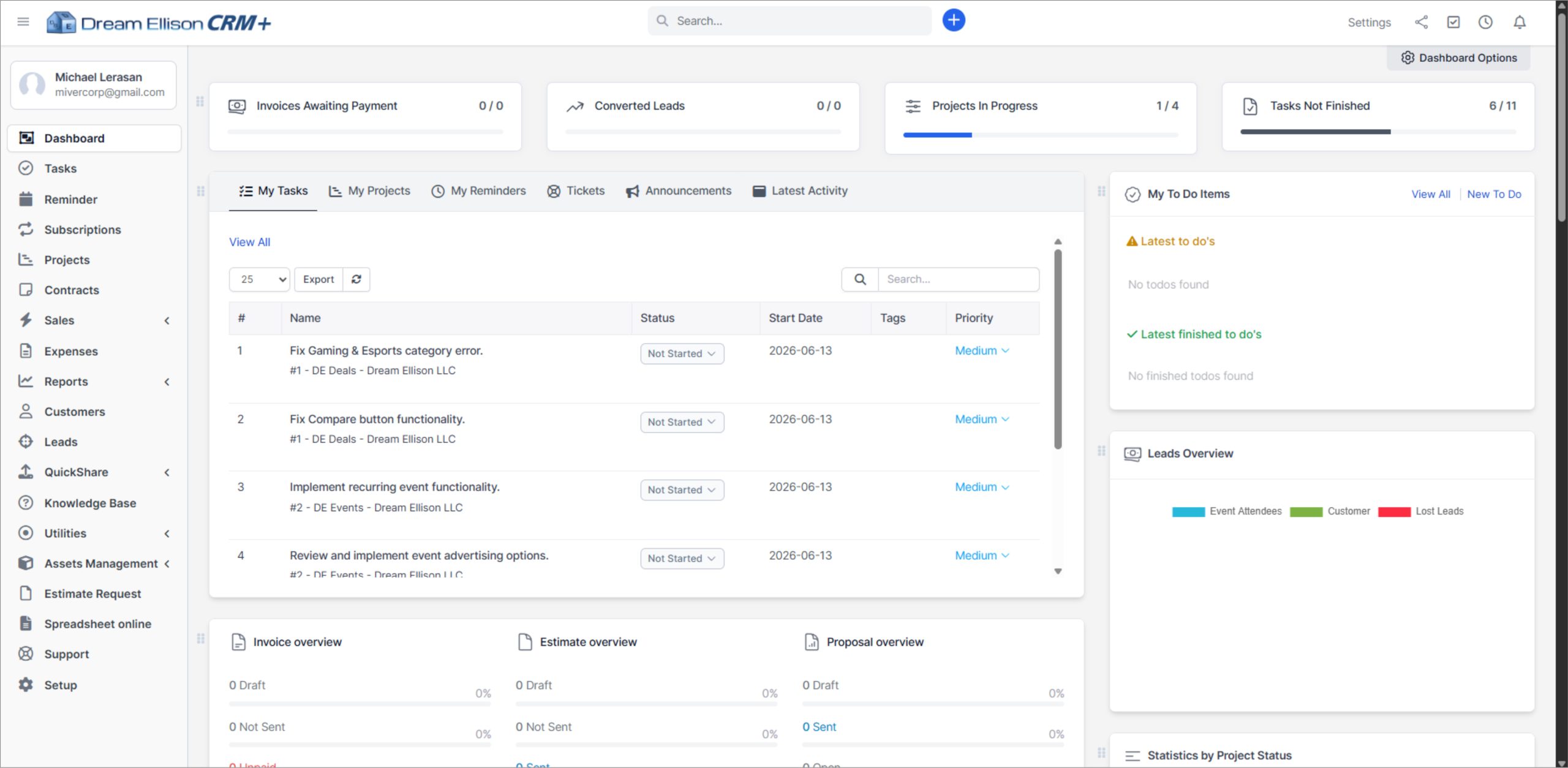
The Admin Dashboard provides full access to the main CRM modules, including Dashboard, Tasks, Reminders, Subscriptions, Projects, Contracts, Sales, Expenses, Reports, Customers, Leads, QuickShare, Knowledge Base, Utilities, Assets Management, Estimate Request, Spreadsheet Online, Support, and Setup. This view is designed for management-level users who need complete control over projects, tasks, customers, reports, billing, support, and system configuration.
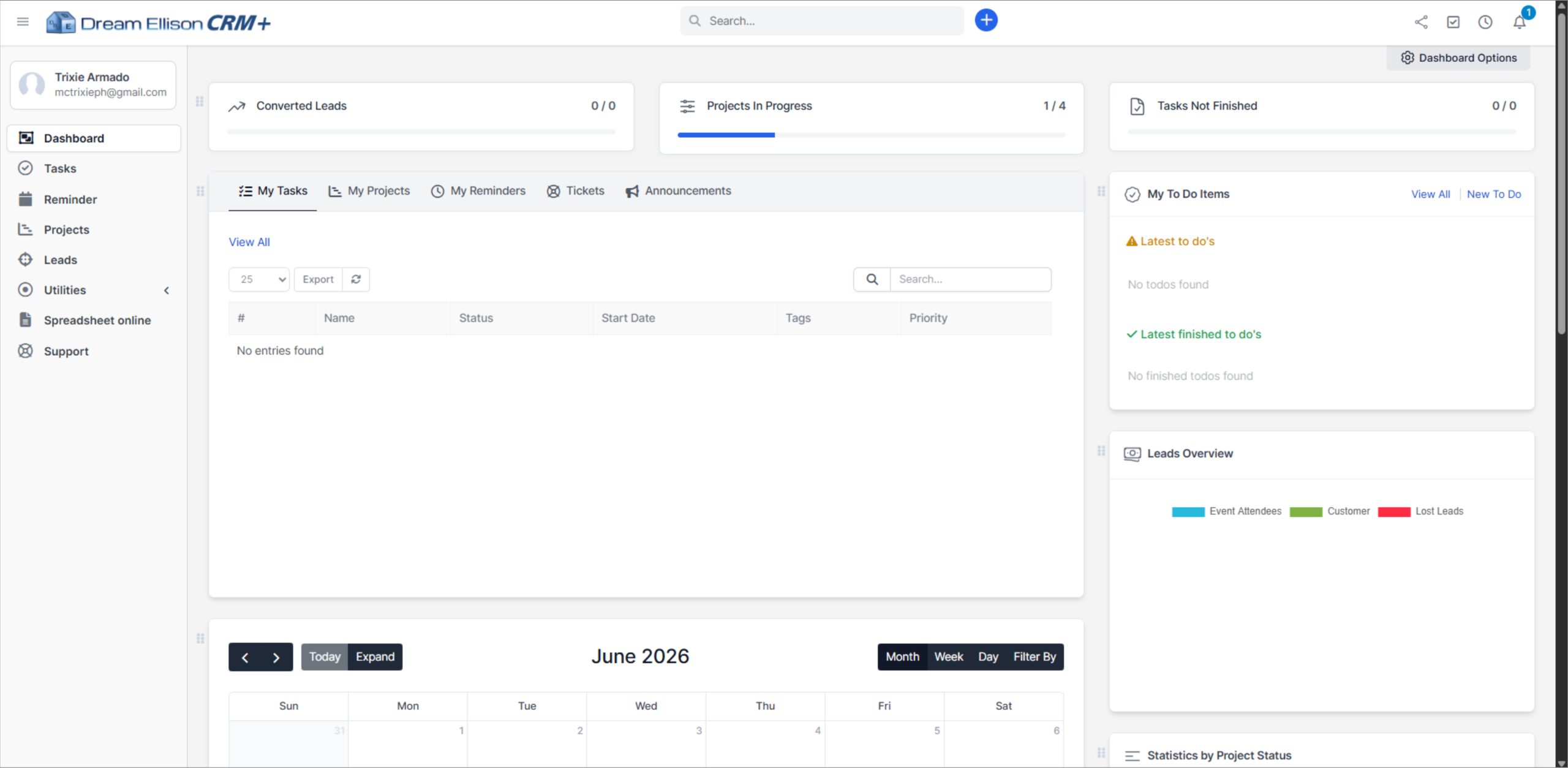
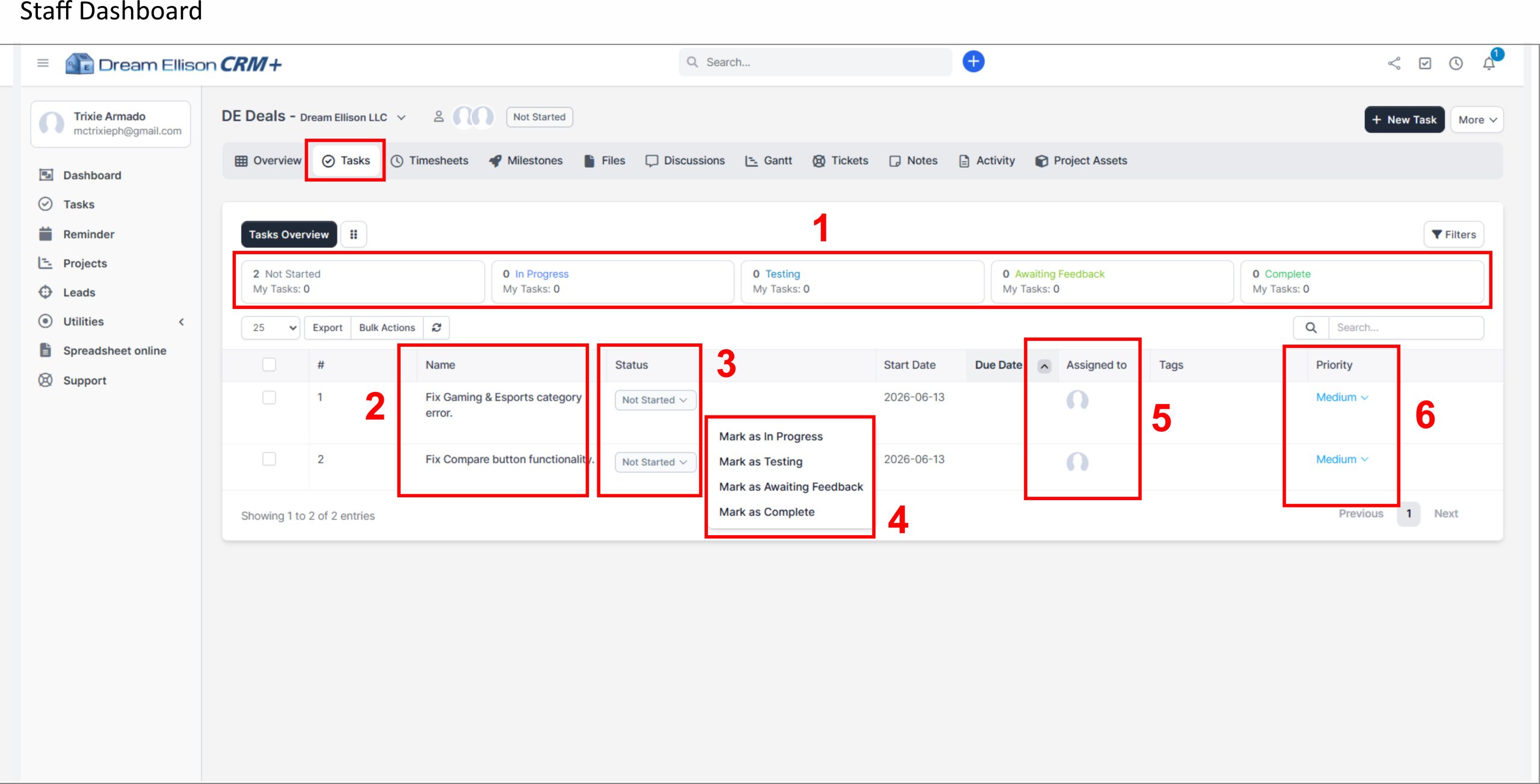
The Staff Dashboard provides a simplified workspace focused on assigned responsibilities. It includes access to essential modules such as Dashboard, Tasks, Reminders, Projects, Leads, Utilities, Spreadsheet Online, and Support. This view is intended for team members who need to manage assigned tasks, monitor project activity, track reminders, respond to support items, and update work progress without accessing administrative or financial controls.
Both dashboards include summary widgets such as converted leads, projects in progress, unfinished tasks, personal tasks, reminders, tickets, announcements, to-do items, and project status statistics. The dashboard serves as the main control center for monitoring daily work, tracking pending assignments, and managing website-related project activity within DE CRM+.
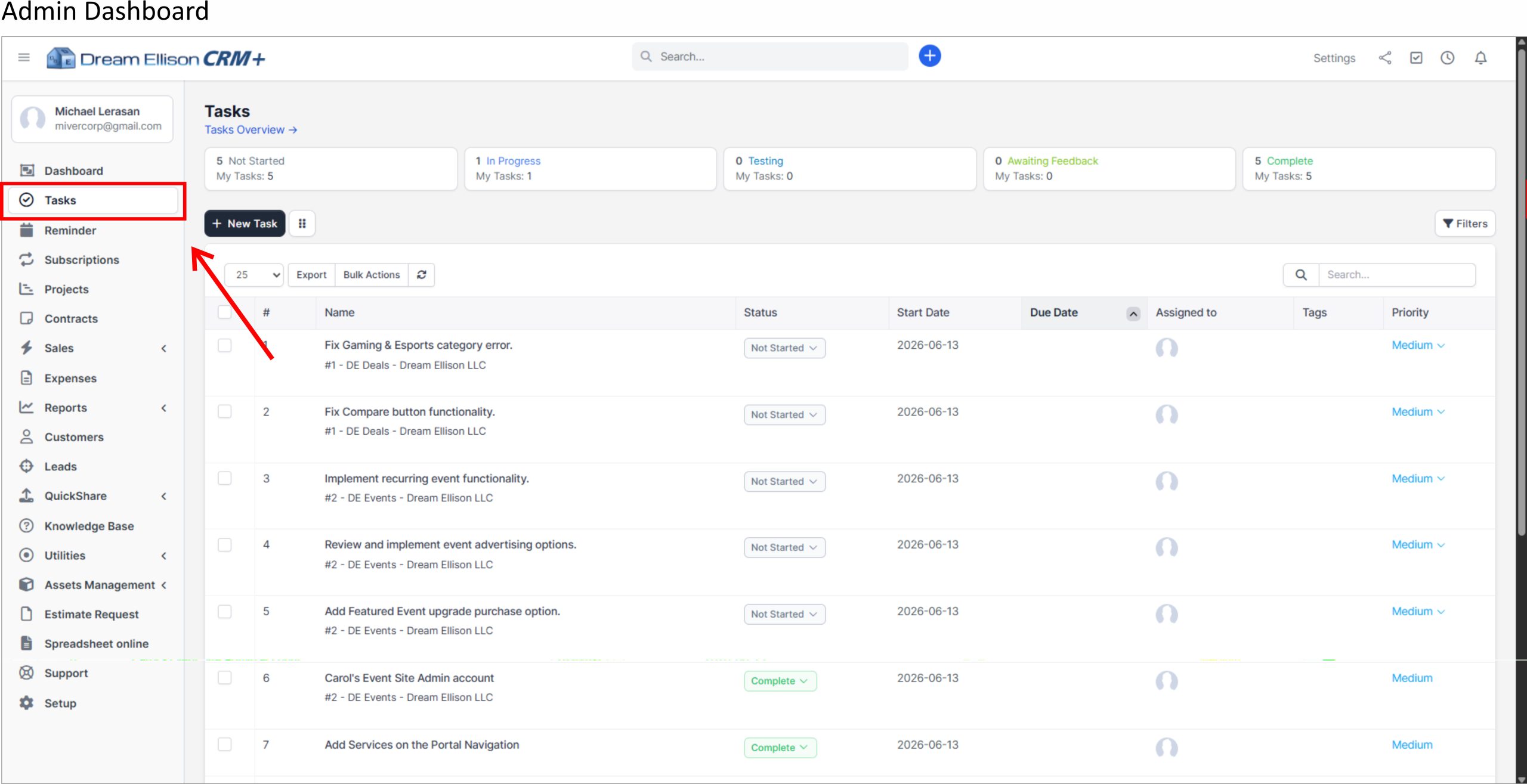
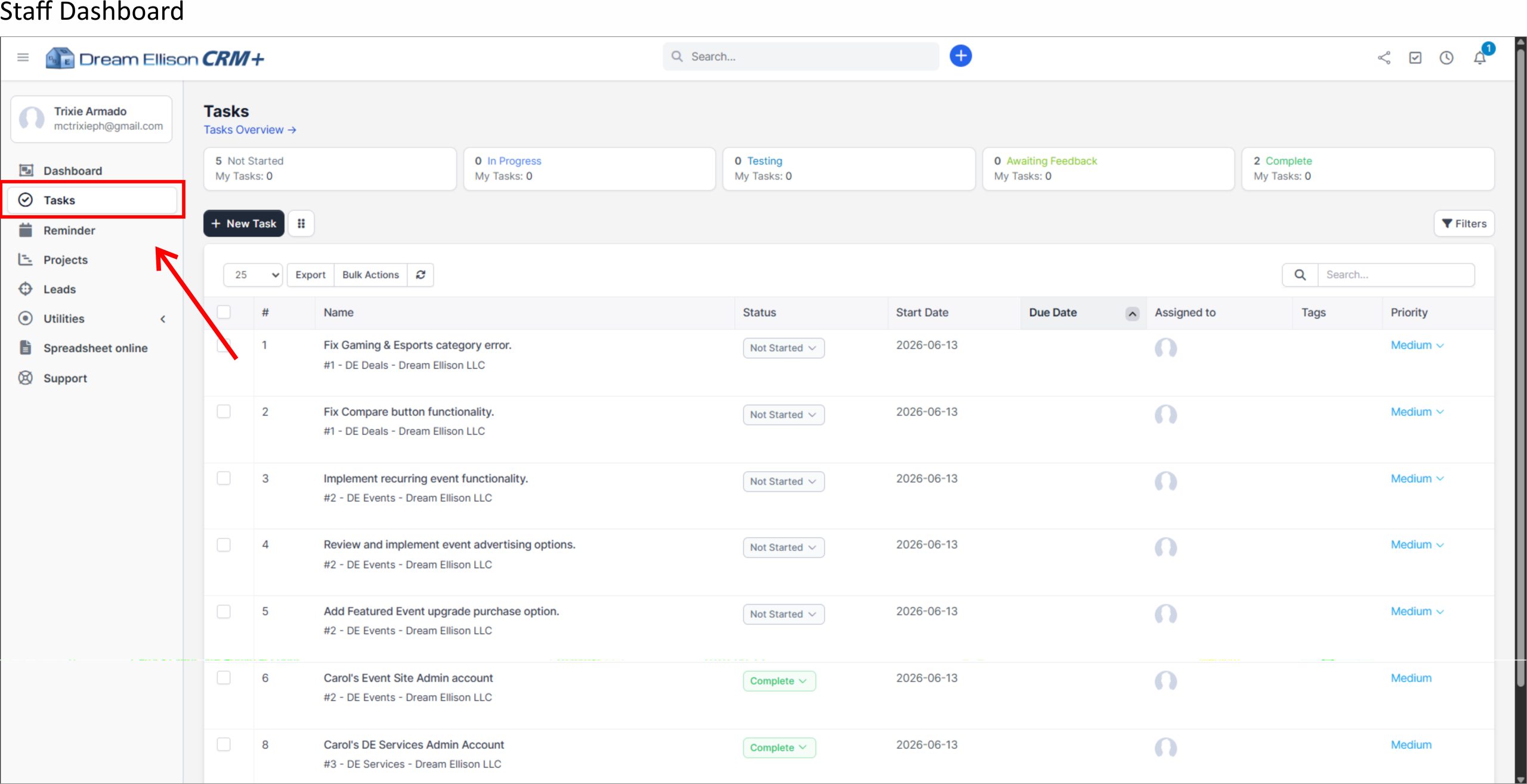
The highlighted Tasks menu in the left sidebar indicates where users can access the centralized task management area. This module displays all assigned and project-related tasks in a structured table format, allowing users to monitor work items across different Dream Ellison website projects.
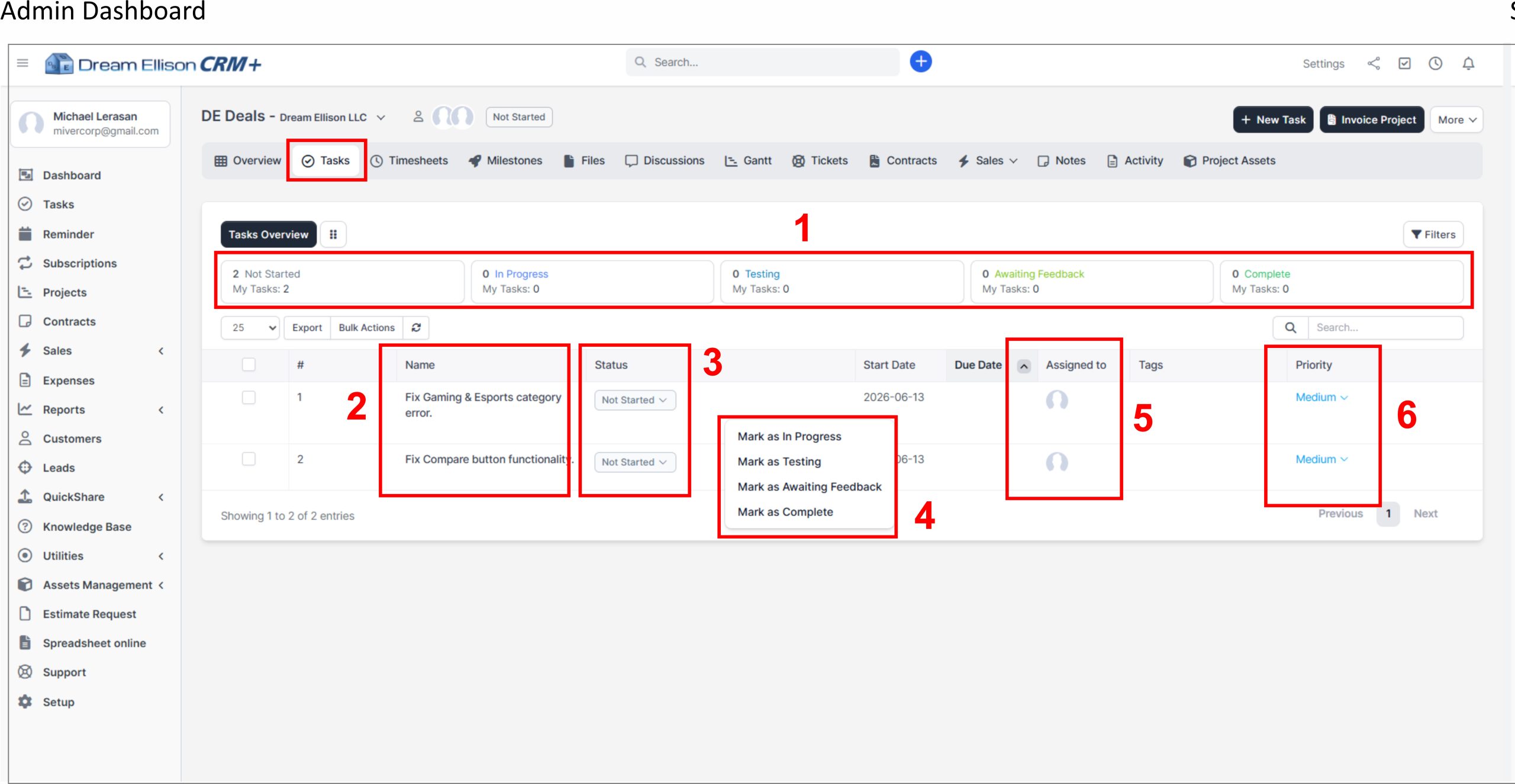
In the Admin Dashboard, the user has broader access to all task records, including website-related tasks from DE Deals, DE Events, DE Services, and Dream Ellison Portal and Subs. Admin users can create new tasks, review task status, monitor priorities, apply filters, export task records, and manage bulk actions.
The task list includes key fields such as task name, project reference, status, start date, due date, assigned staff, tags, and priority. This view helps both administrators and staff monitor pending work, identify completed items, and ensure that website updates, fixes, improvements, and support requests are properly tracked within DE CRM+.
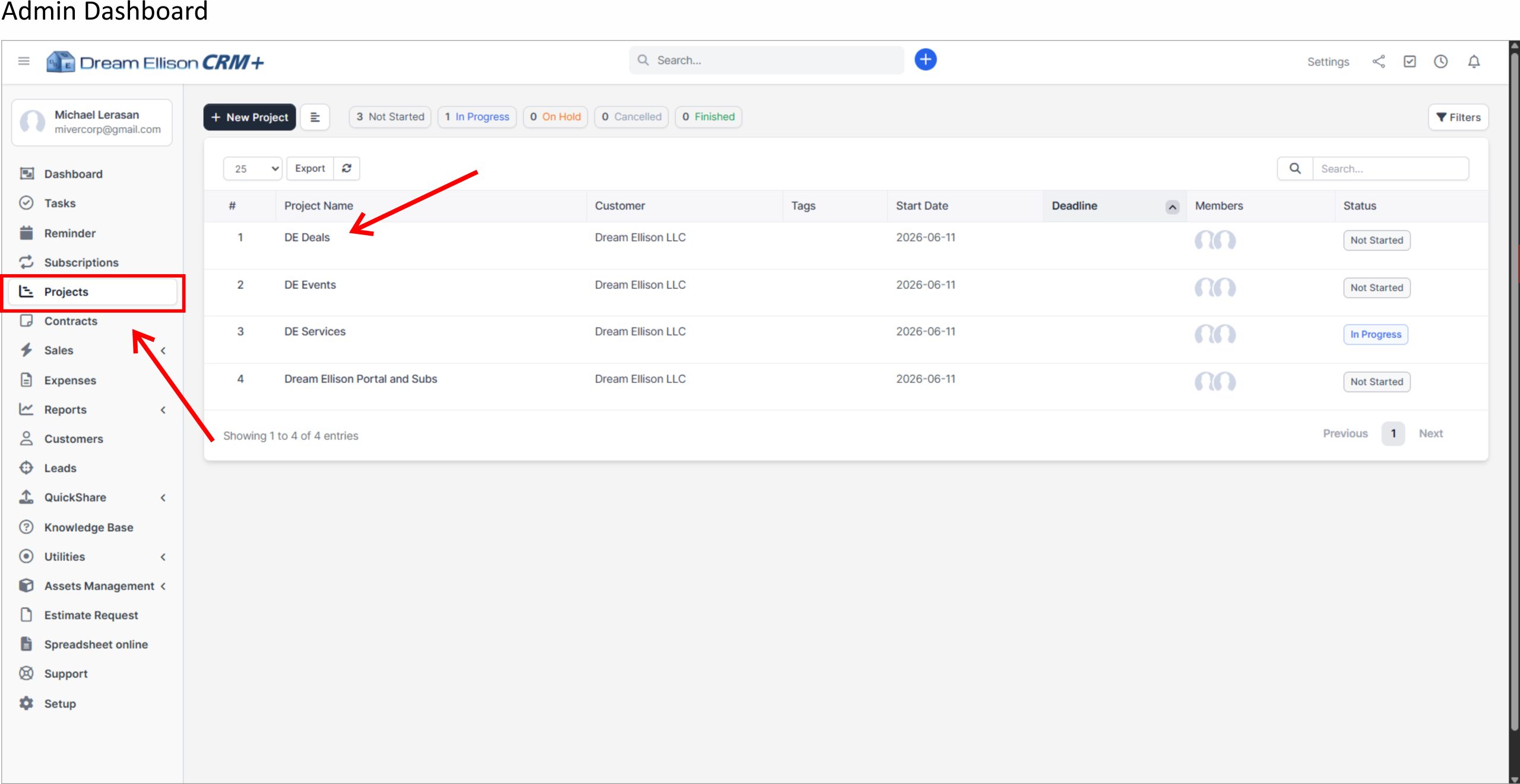
The highlighted Projects menu in the left sidebar indicates where users can access the centralized project management area for Dream Ellison website operations. This section contains the main project records for the Dream Ellison ecosystem, including DE Deals, DE Events, DE Services, and Dream Ellison Portal and Subs.
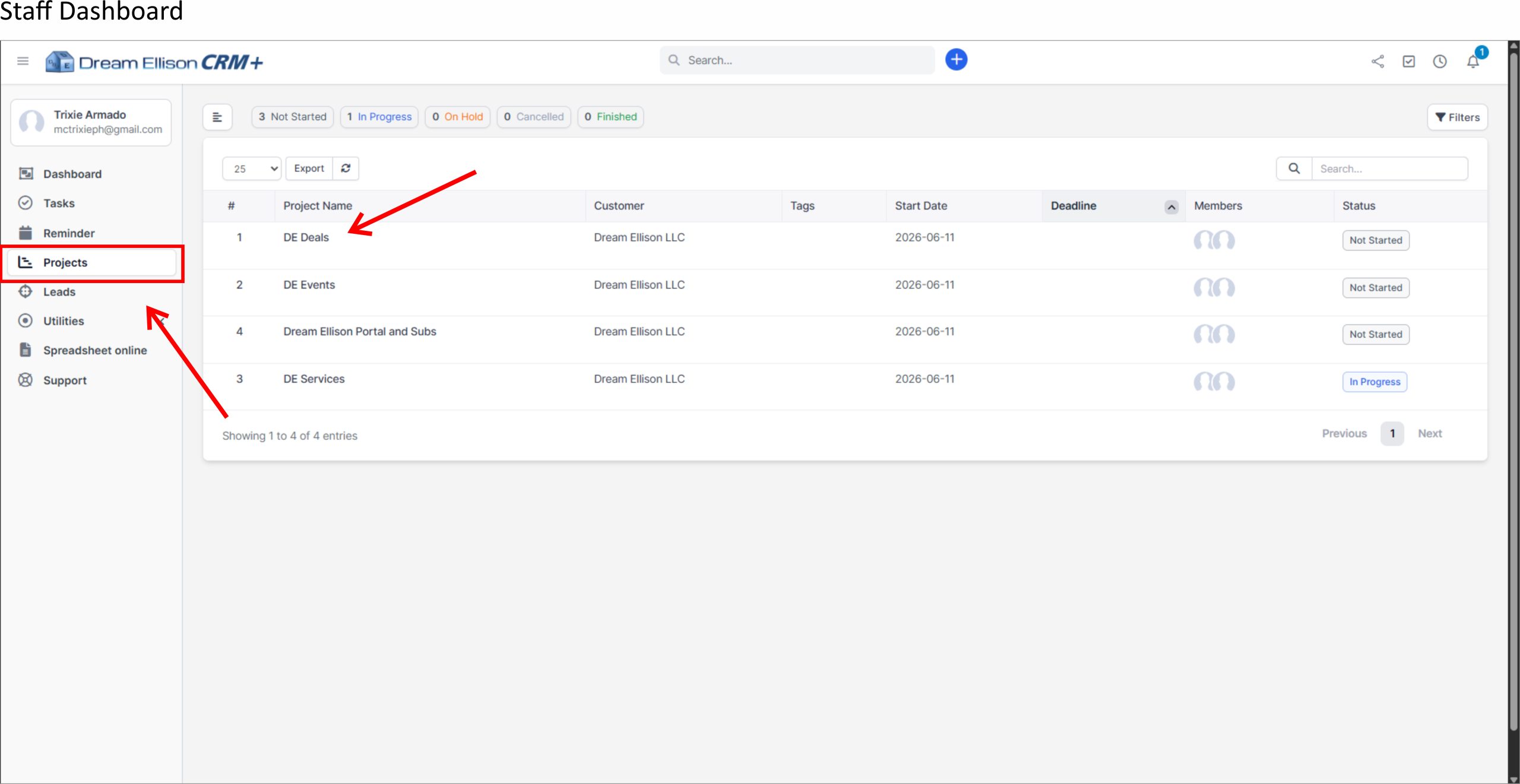
In the Admin Dashboard, users can view and manage all website projects, create new projects, monitor project status, apply filters, export project data, and access project-level controls. Admin users have broader visibility across all project records and can supervise overall progress, deadlines, members, and status updates.
The project table includes key information such as project name, customer, tags, start date, deadline, assigned members, and status. This view serves as the main entry point for managing Dream Ellison website workstreams and ensures that each website project is organized, trackable, and separated by scope.
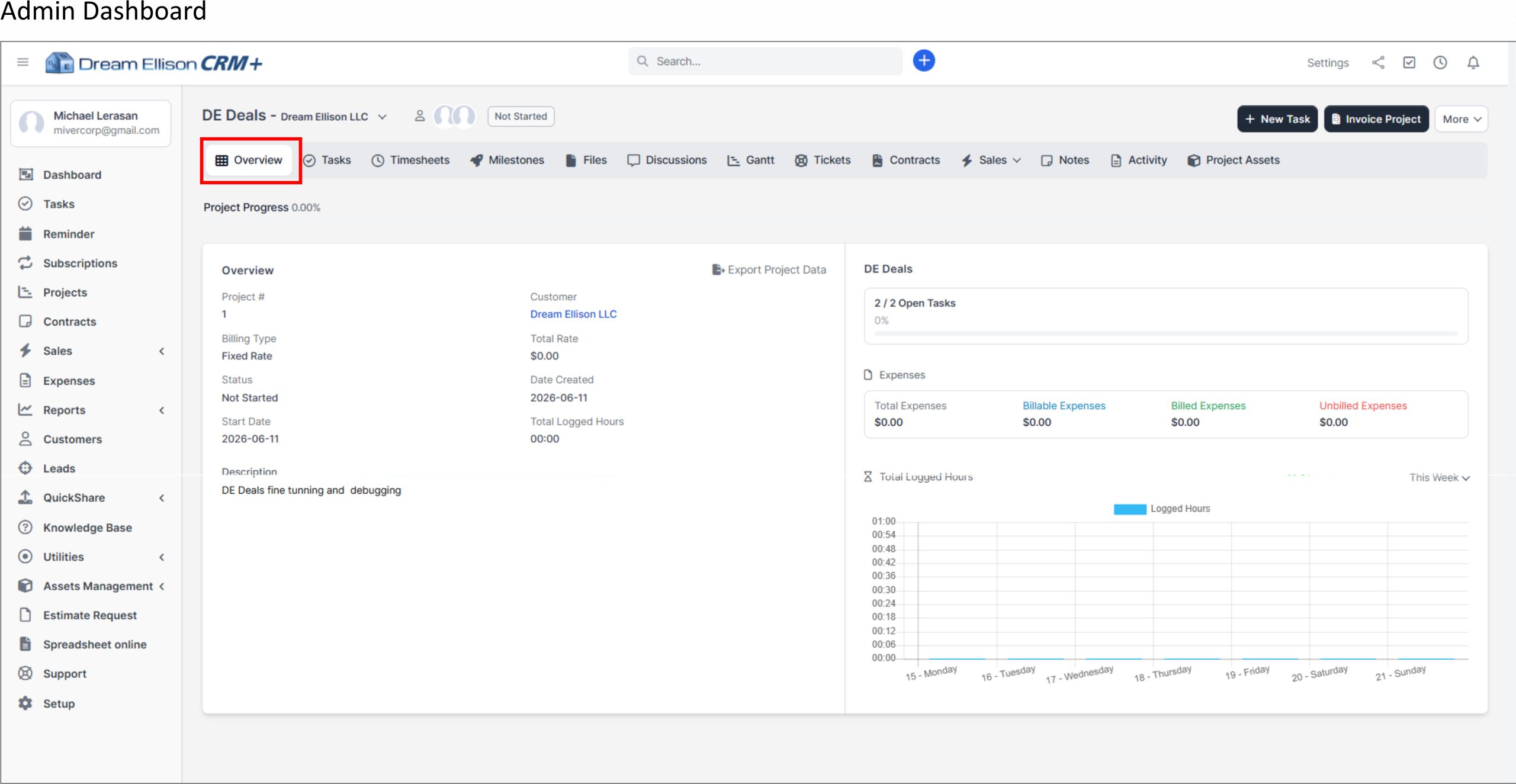
The highlighted project title area shows the selected website project, in this example DE Deals – Dream Ellison LLC. The highlighted Overview tab indicates the default project summary page where users can review the main project details, current status, task progress, financial summary, and logged work hours.
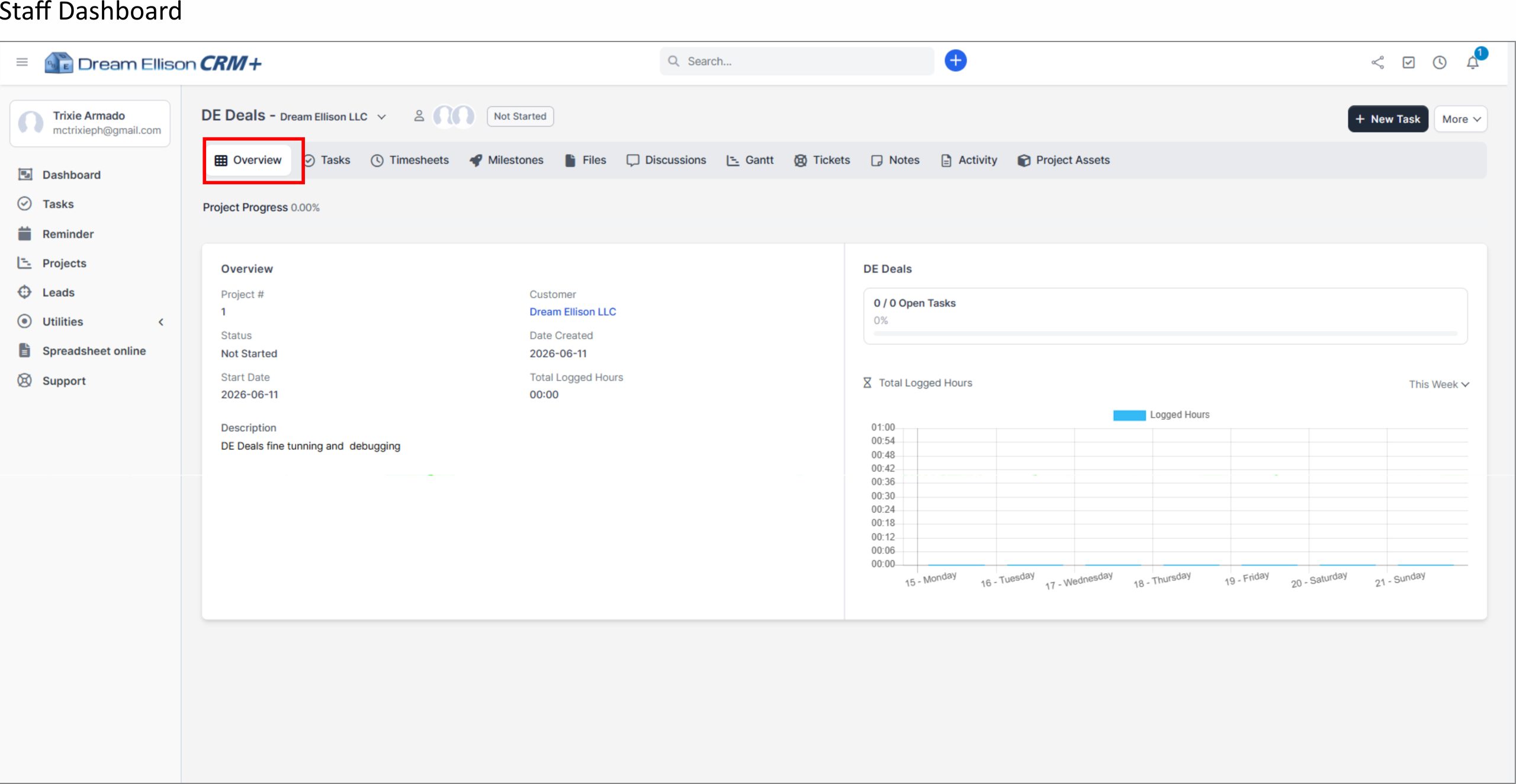
In the Admin View, the project page includes broader controls such as New Task, Invoice Project, and additional project management options. Admin users can manage project settings, create tasks, monitor expenses, review billable and unbilled items, and access project-level sales, contracts, assets, notes, activity, and other administrative tools.
The Project Overview page includes key information such as project number, billing type, status, start date, customer, date created, total rate, total logged hours, project description, open task count, expense summary, and logged-hours chart. This section provides a centralized snapshot of the project’s current condition and helps both administrators and staff understand the status of each Dream Ellison website project before managing related tasks or updates.
1. Task Status Summary
The top status cards provide a quick overview of all project tasks grouped by status, including Not Started, In Progress, Testing, Awaiting Feedback, and Complete. This allows users to immediately identify how many tasks are pending, active, under review, waiting for feedback, or already completed.
2. Task Name / Task List
The task table displays the individual work items under the selected project. Each task includes a clear task name, allowing users to identify what needs to be completed, such as fixing website errors, updating functions, or completing project-related improvements.
3. Task Status Column
The status column shows the current progress stage of each task. Users can update the task status directly from the dropdown to reflect the latest work condition.
4. Status Update Dropdown
The status dropdown allows users to move a task through its workflow stages. Available actions include Mark as In Progress, Mark as Testing, Mark as Awaiting Feedback, and Mark as Complete. This ensures that task progress is updated in real time and remains visible to the project team.
5. Assigned To Column
The assigned user column shows the staff member responsible for completing or monitoring each task. This helps clarify accountability and ensures that each task has a designated owner.
6. Priority Column
The priority column shows the urgency level of each task, such as Medium. This helps Admin and Staff users identify which tasks should be handled first based on operational importance, deadline sensitivity, or website impact.
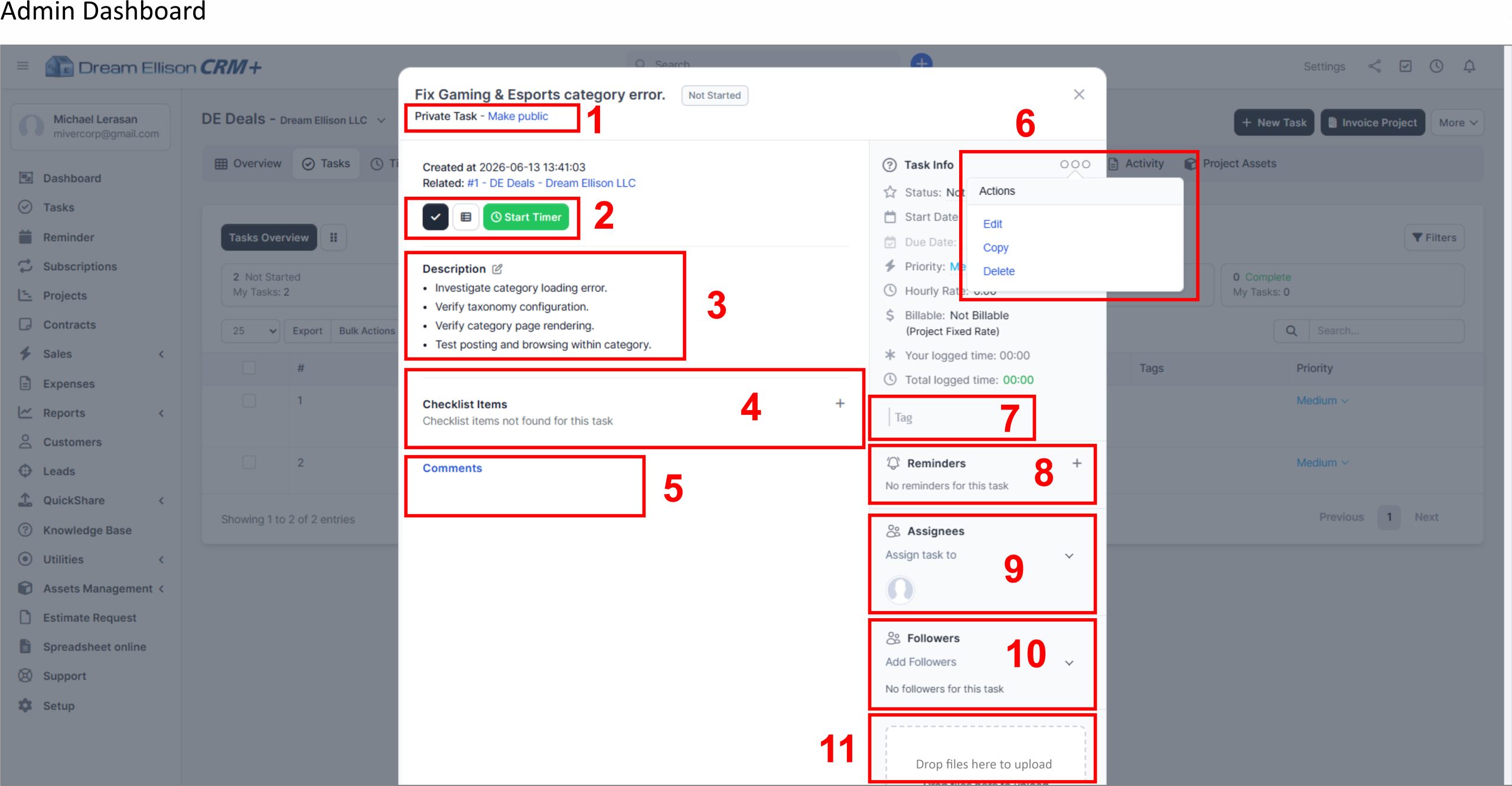
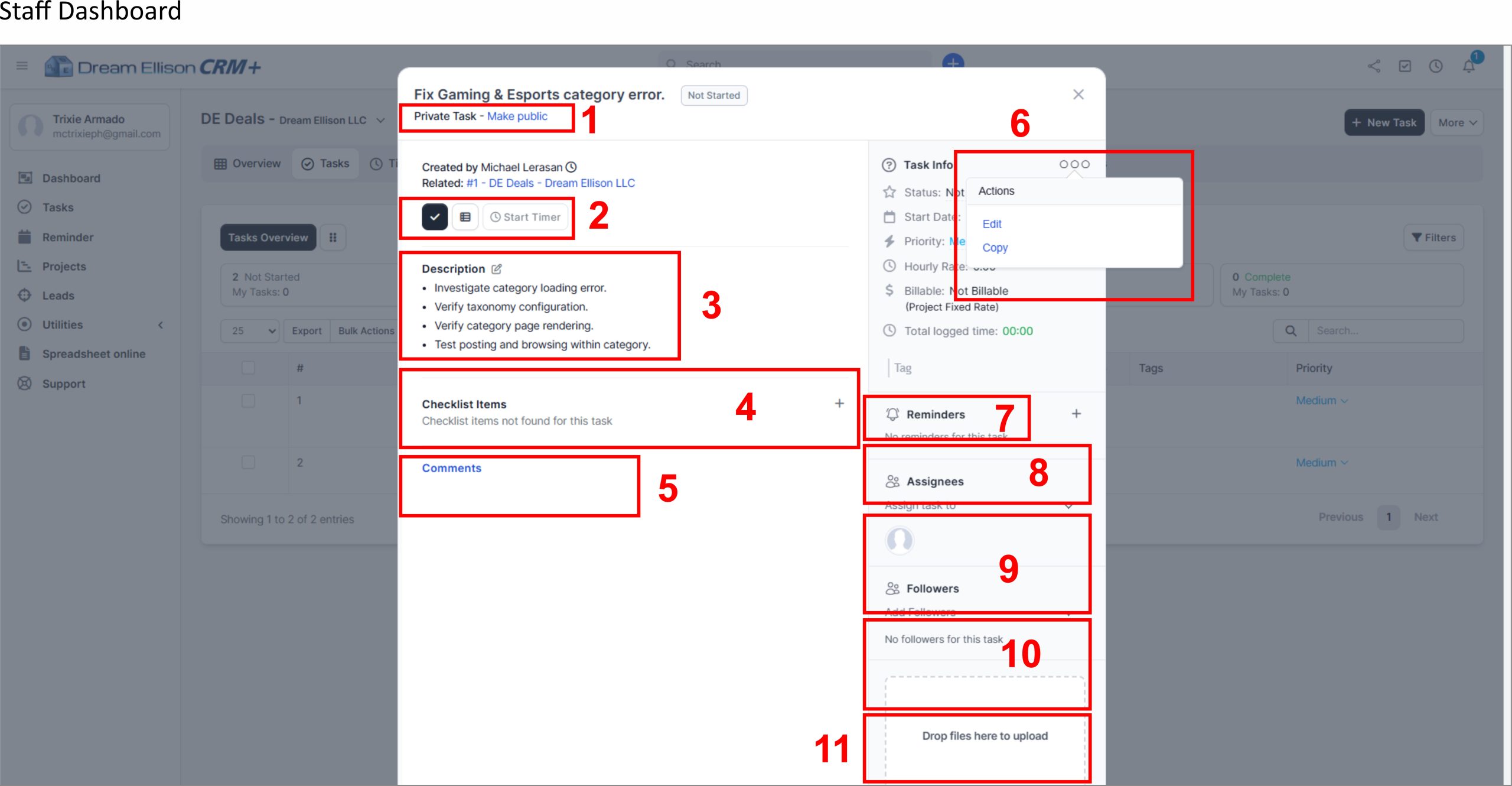
1. Task Title and Visibility Status
This area displays the task title, task status, privacy setting, and public visibility setting. The title identifies the specific work item, while the privacy and public indicators show whether the task is internal or visible according to project permissions.
2. Task Action Buttons and Timer Control
This section includes quick action buttons and the Start Timer button. Users can start the timer when working on the task so logged hours are recorded accurately under the related project.
3. Task Description
The description area contains the detailed instructions, scope, and expected work for the task. In the example, the task includes steps such as investigating the category loading error, verifying taxonomy configuration, checking category rendering, and testing posting or browsing within the category.
4. Checklist Items
This section is used to break the task into smaller checklist items. Checklist items help track sub-steps, quality checks, or completion requirements before the task is marked complete.
5. Comments
The comments area is used for task-specific communication, updates, clarifications, and progress notes. Team members should use this section to document important changes, questions, or completion notes related to the task.
6. More Actions Menu
The actions menu provides additional task controls such as edit, copy, and delete. Admin users may use this menu to revise task details, duplicate similar tasks, or remove incorrect task records.
7. Tags / Reminders Area
This section allows users to add tags or reminders depending on the available user view and permissions. Tags help classify the task by work type, while reminders help users follow up on time-sensitive actions.
8. Reminders / Assignees Area
This area is used to add reminders or assign users depending on the dashboard view. Reminders support follow-up scheduling, while assignees define who is responsible for completing the task.
9. Assignees / Followers Area
This section identifies the task owner or users assigned to complete the work. In some views, this area may also show followers who need visibility on the task without being directly responsible for execution.
10. Followers Area
Followers are users who need to monitor the task, receive updates, or stay informed about progress. This is useful for supervisors, reviewers, or stakeholders who need visibility but are not the main assignee.
11. File Upload Area
The file upload section allows users to attach supporting files, screenshots, references, reports, or other task-related documents. This helps keep all task evidence and working materials connected to the task record.
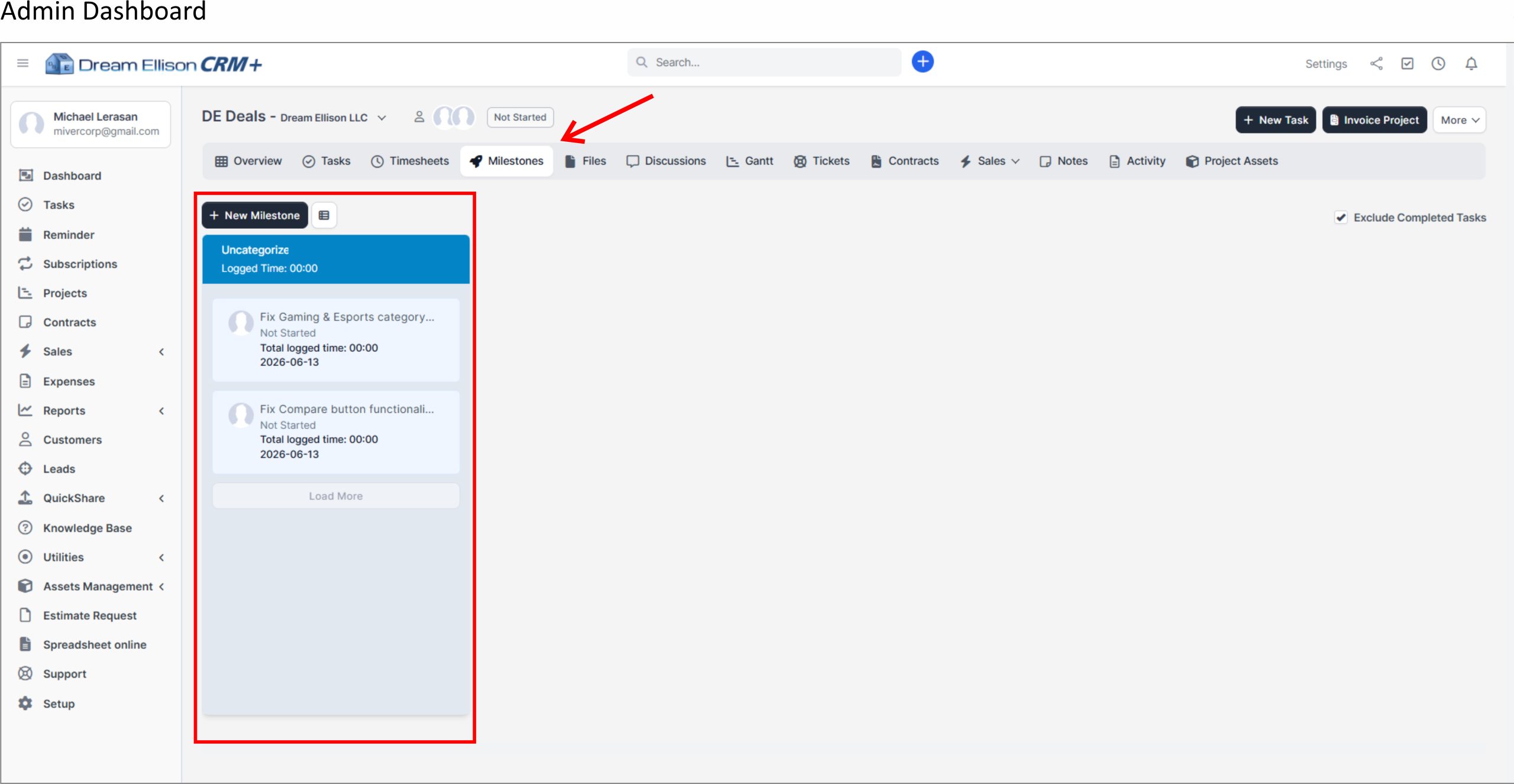
The highlighted Milestones tab indicates where users can access milestone-based task tracking for the selected website project. Milestones help group related tasks under a specific project stage, making it easier to monitor progress, review pending work, and confirm which deliverables are still active.

In the Admin View, users can create and manage milestones using the New Milestone button. Admin users can define project phases, assign related tasks, review logged time, and organize work according to delivery schedules or approval checkpoints.
The milestone column displays grouped tasks, their status, logged time, and related dates. In the example, tasks are shown under an uncategorized milestone section, meaning they have not yet been assigned to a formal milestone. For better project tracking, tasks should be grouped under proper milestones such as Planning, Development, Testing, Client Review, Deployment, or Post-Launch Support.
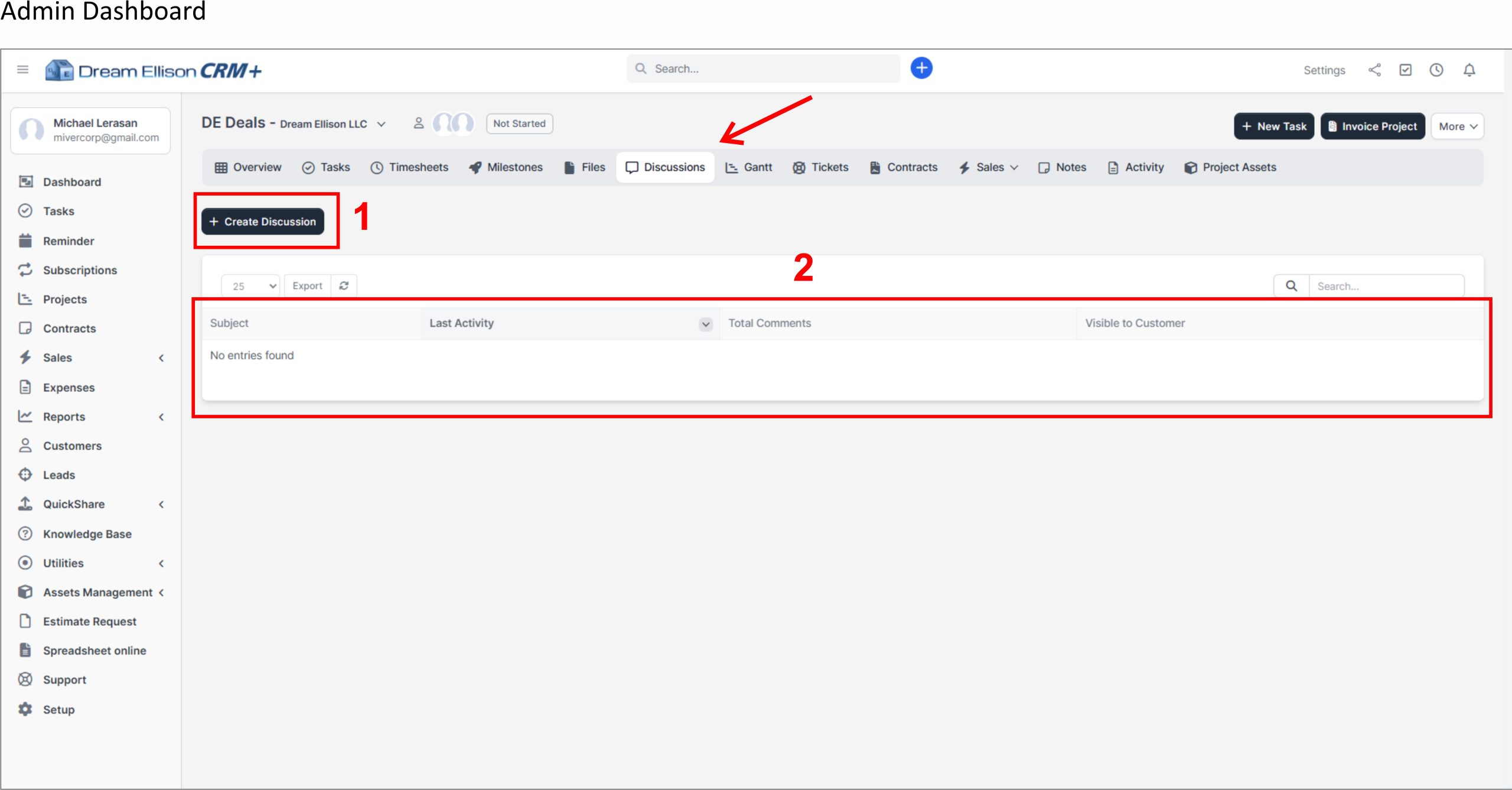
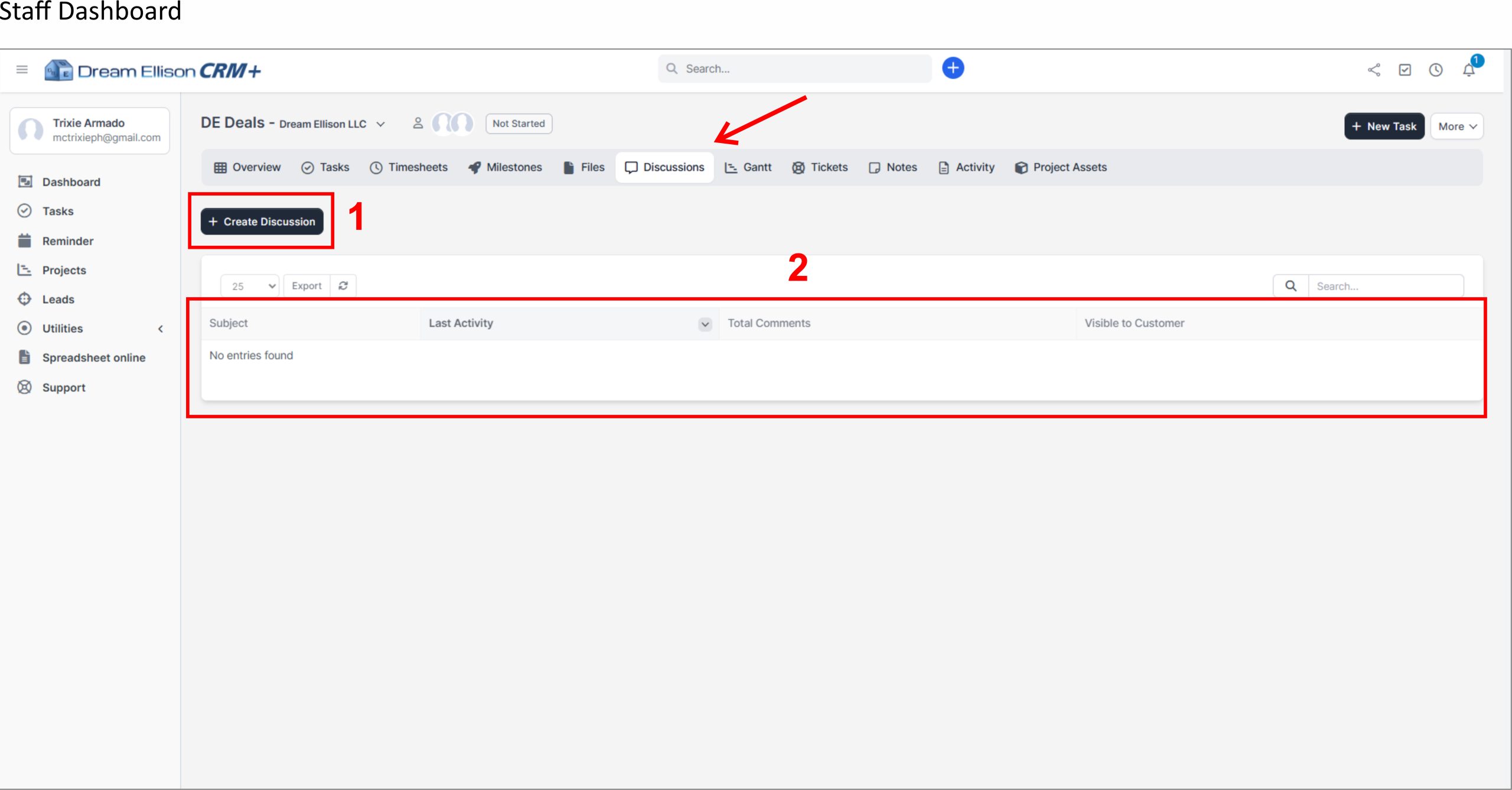
1. Create Discussion Button
The Create Discussion button allows users to start a new project discussion. A discussion may be used for topics such as website updates, bug clarification, content approval, deployment coordination, design review, or client feedback. Admin users can use this feature to open structured discussion threads for each major concern or approval item.
2. Discussions List Table
The discussions table displays all discussion threads created under the project. It includes information such as the discussion subject, last activity, total comments, and visibility to the customer. This helps users monitor active conversations and quickly identify whether a topic has pending replies or updates.
For staff users, the Discussions page provides a centralized area to review project communication based on their access level. Staff members can use this section to follow instructions, provide updates, respond to project-related questions, and keep all communication connected to the correct website project.
This page helps prevent project instructions and decisions from being scattered across separate chat apps or email threads. All relevant project communication should be recorded inside the Discussions tab so that DE CRM+ remains the official reference for website project coordination, approvals, and documentation.
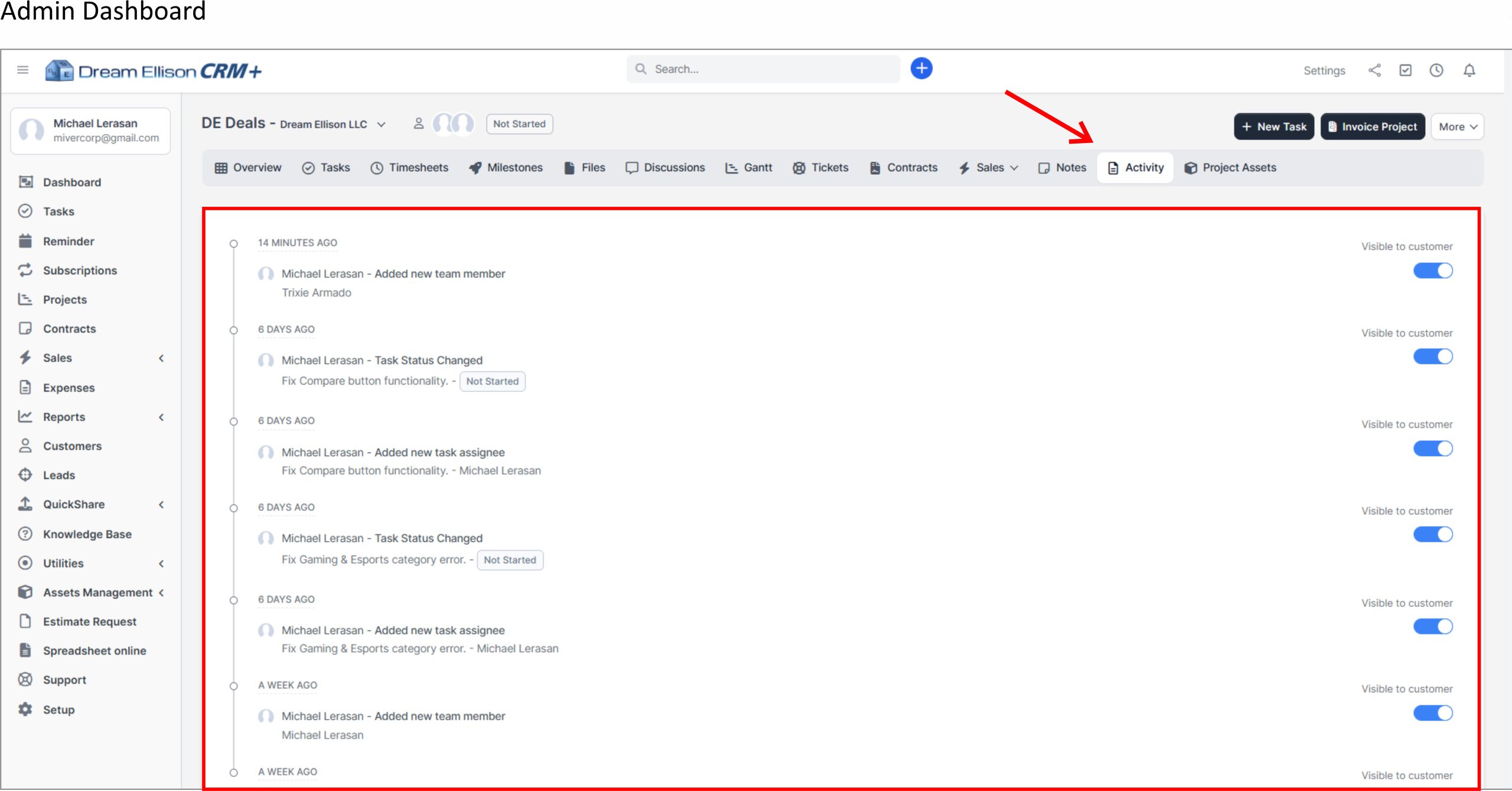
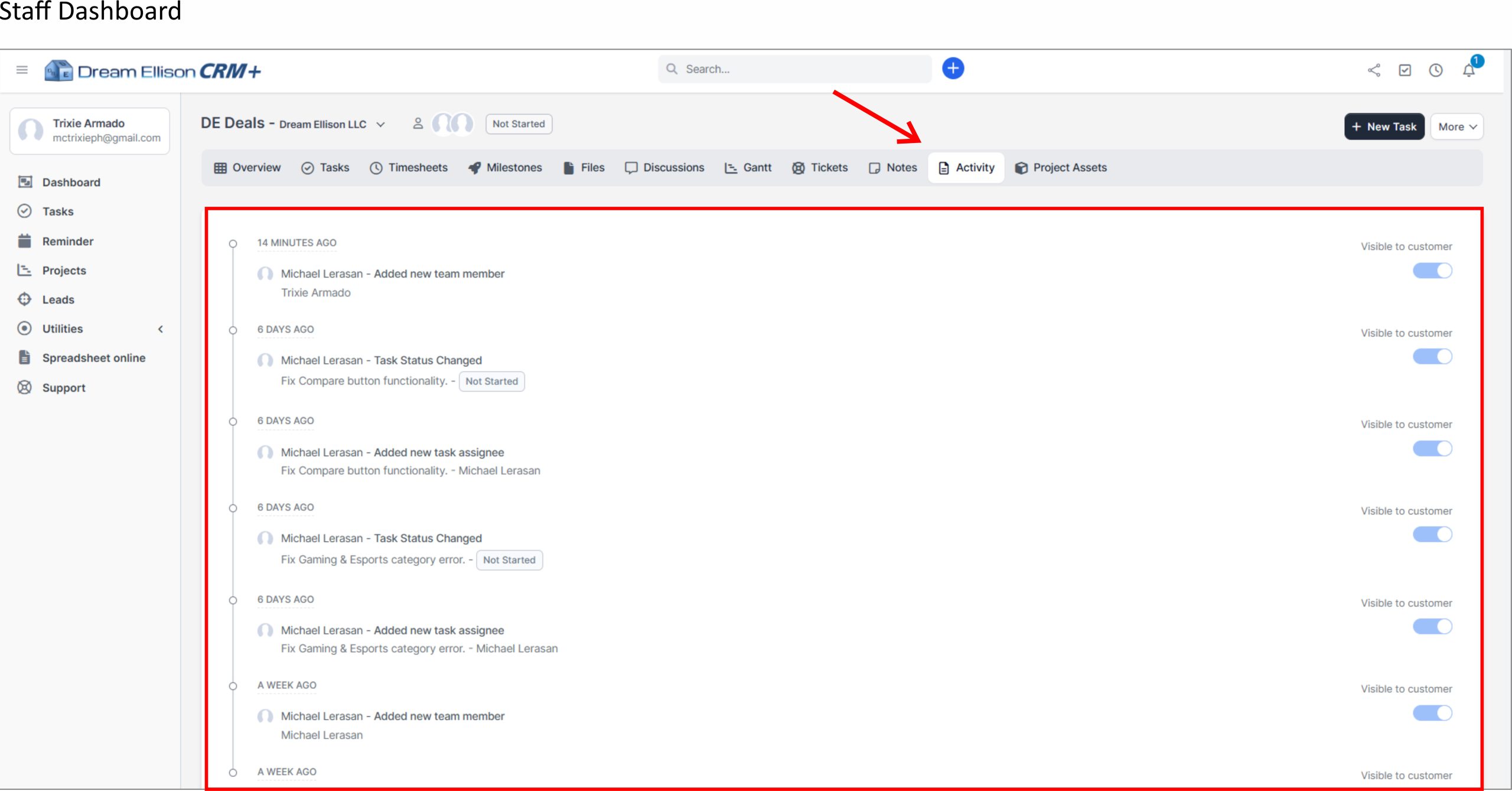
The activity timeline shows each action with the date or time of the update, the user who performed the action, and a short description of what changed. This allows Admin and Staff users to verify project movement, track who updated a task, and review historical actions without relying on external messages or manual reports.
The Visible to Customer toggle allows authorized users to control whether specific activity entries can be seen by the customer or client-side users. This is useful when separating internal operational updates from customer-facing project information.
For Admin users, the Activity page is useful for supervision, accountability, and project auditing. Admins can review completed actions, confirm task progress, and monitor staff activity across the project.
For Staff users, the Activity page provides visibility into recent project updates, helping them understand what has changed, which tasks were updated, and whether new assignments or status changes were made.
This page should be used as the official project history log for Dream Ellison website projects. All important task movements, project updates, assignments, and progress changes should be recorded within DE CRM+ so the team can maintain a clear and traceable project record.